Siri AI is Evolving into Apple’s All-in-One Solution
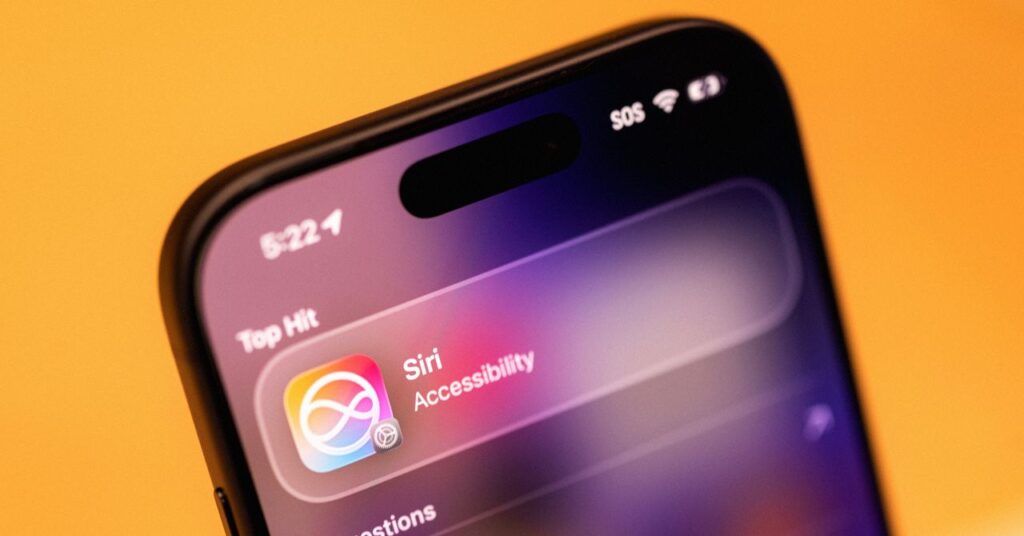
Want to restrict Siri from using your interactions with a particular app? Navigate to your phone’s Settings, locate the Siri AI section, and scroll to App Access. Select the app you wish to modify and slide Learn from this App to the left. A beta version of the description under this toggle states, “Allow Siri to learn how you use this app to make suggestions across apps.” By default, this feature is enabled if Siri AI is active.
This upgraded version of Siri integrates seamlessly with the phone’s search functionality. Swiping down from the center of the screen brings up Siri, presenting a Search or Ask bar. You can either type your query into the bar or tap the microphone icon to voice your question. Hitting enter typically sends the request to Siri for answers. For example, I inquired, “What’s a good route for driving to Sacramento?” Siri launched the Maps app, displaying a pre-selected driving route. Quite impressive! Additionally, you can tap Show Results beneath the text bar for a more conventional web search experience.
On-Screen Awareness
In addition to retrieving personal context from indexing, Siri can glean information from what is currently visible on your screen. This feature, previously known as Siri’s “Visual Intelligence,” enhances Siri’s ability to assist you effectively, regardless of what you’re engaged in.
This functionality simplifies fact-checking while browsing social media. For example, while scrolling through Bluesky, I encountered multiple posts discussing singer Lorde’s comments about Meta’s AI smartglasses but lacked a source. With the relevant post displayed on my screen, I asked Siri AI, “Where did she say this?” There was no need to specify who “she” referred to or the exact comment; Siri gathered that information from my screen. Siri then confirmed that this statement was made at a festival in Madrid and provided links for further reading.
For Siri AI, visibility is crucial. Well, at least visibility of your screen and surroundings. Beyond on-screen awareness, Apple has introduced a new Siri tab within the camera app, in addition to the standard photo and video options. Tapping the circular button in the center enables Siri to analyze images and provide a brief context summary. Pressing the message icon on the left allows you to send an image to Siri with an option for added prompts. The image search icon on the right lets you browse the web for relevant links.

Everything, Everywhere
Siri AI transcends being just Apple’s smartphone assistant; it integrates into the user experience throughout the entire ecosystem. Siri can be found on iPads and Macs, complete with screenshot integrations on iPads and a dedicated shortcut on Macs. Even the Vision Pro features this new version of Siri, although it’s a rarity among users. However, there are hardware requirements to consider. For instance, Siri AI is only available on the iPhone 15 Pro and newer models—even if you can install iOS 27, it doesn’t ensure access to the latest Siri.
Focusing on the iPhone, Siri AI’s features extend even further than already mentioned. “Write with Siri” is another handy tool for drafting notes or composing texts. For example, while texting my partner about organizing our apartment, I activated Siri, summarized what I wanted to say (more storage bins), and it generated a well-structured paragraph that resembled my writing style, filling it into the message box. A significant upgrade from previous auto-suggestions.

Rajat Sharma
https://in.linkedin.com/in/rajat-mediaHelping D2C Brands Scale with AI-Powered Marketing & Automation 🚀 | $15M+ in Client Revenue | Meta Ads Expert | D2C Performance Marketing Consultant